How to Fix Canon Printer Not Responding on Windows & Mac
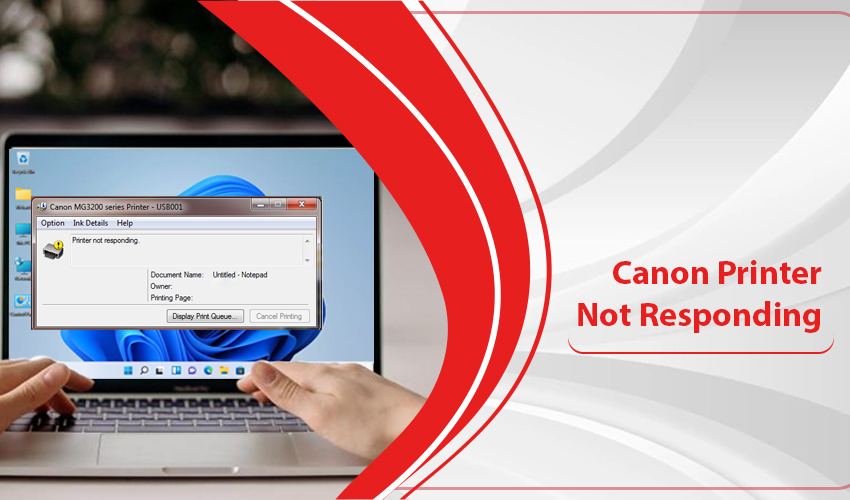
A Canon printer not responding error indicates a breakdown in communication between your device and the printing hardware. This failure results due to outdated drivers, network configuration errors, or print spooler glitches. Find stepwise instructions to fix it quickly with minimal technical knowledge.
Reasons for Canon Printer Not Responding
A Canon printer becomes unresponsive when your computer sends a print command, but the communication chain breaks down due to a hardware glitch, a network mismatch, or a software conflict. Here are detailed reasons behind a Canon printer that’s failing to respond on Windows and macOS.
1. Connectivity & Network Failures
Connection issues are the leading cause of unresponsiveness, especially for wireless models.
- Your computer is on the 5GHz band while the printer is on 2.4GHz. Many older Canon models only support 2.4GHz).
- If your router reassigned a new IP address to the printer, the computer is still looking for it at the old, “dead” address.
- Physical barriers or distance from the router causing the Canon printer not responding WiFi status.
- A physically damaged or loose USB cable preventing a direct wired connection.
2. Windows-Specific Issues (10 & 11)
Windows handles printer communication through specific services and “ports” that can easily become corrupted due to:
- The internal Windows service that manages the print queue has crashed or frozen.
- The driver is trying to send data to a “WSD” port instead of a “Standard TCP/IP” port (a common Windows 10 and Windows 11 bug).
- Windows Defender or third-party antivirus software identifying the printer’s network request as a threat.
- A recent Windows update may have partially overwritten the Canon driver files.
3. macOS-Specific Issues
Macs rely heavily on the AirPrint protocol and system permissions, which can occasionally lock up. It happens because of:
- The underlying Common Unix Printing System (CUPS) used by Mac has a stuck job in the backend.
- A generic AirPrint driver instead of the dedicated Canon IJ Series driver limits bidirectional communication.
- Security settings in macOS prevents “Printer Proxy” from accessing the local network.
- A bloated printing cache that requires a “Reset Printing System” to clear.
4. Software & Driver Conflicts
Software and drivers act as translators between your OS and your hardware, and they are often the weak link.
- The printer won’t respond if you use a driver built for an older version of macOS or Windows on a newer OS.
- Windows or Mac auto-installing a Class Driver lacks the full functionality of the official Canon software.
- The firmware is out of sync with the current security protocols of your computer.
Quick Steps to Fix Canon Printer Not Responding
Connectivity is the most common culprit behind a canon printer not responding Wi-Fi error. Here’s how to resolve it:
- Power cycle the device. Turn off the printer, router, and computer for 30 seconds.
- Verify SSID. Ensure the printer and the host device are on the same 2.4GHz or 5GHz network.
- Check the IP address. Print a network configuration page from the printer to verify it has a valid IP address.
- Ensure a strong signal strength. Move the printer closer to the router to eliminate interference.
- Configure your printer to the correct port. Go to Printers & Scanners. Click on your Canon printer model and select Printer properties. Click Ports and match it to your connection type (USB or network connection)
Troubleshoot Canon Printer Not Responding in Windows 10 & Windows 11
Operating system updates can occasionally disrupt printer communication protocols. Here’s what Windows 10 and 11 users can do:
For Windows 10
If your canon printer not responding windows 10 issue happens after taking the steps in the previous sections, use the built-in diagnostic tools.
- Run Troubleshooter: Go to Settings > Update & Security > Troubleshoot > Additional troubleshooters > Printer.
- Check Print Spooler: Press Win + R, type services.msc, find Print Spooler, right-click it, and select Restart.
- Disable the ‘’Use printer offline’’ setting: Click Start > Control Panel > Hardware and Sound > Printer]. Right-click on your printer and choose ‘Use Printer Online.’’
- Select Correct OS: Ensure you download the version specifically for Windows 11, Windows 10, or your current macOS version.
- Firmware Updates: Use the Canon utility tool to check for hardware firmware updates, which often fix “Not Responding” bugs.
- Your printer should not be in sleep mode. Go to control panel and change it from the Devices and Printers menu.
For Windows 11
The canon printer not responding windows 11 error is linked with the Print Support App or driver mismatch. Use these tips to fix it:
- Set as Default: Navigate to Settings > Bluetooth & devices > Printers & scanners. Select your Canon model and click Set as default.
- Disable “Let Windows manage my default printer”: This prevents the OS from switching to “Microsoft Print to PDF” or other virtual printers.
- Reinstall the printer: Select Start > Settings > Bluetooth & Devices > Printers & scanners. Choose the Canon printer you want to uninstall and choose Remove.
- Check Printer Status: Ensure the printer is not in “Sleep Mode” or displaying an error code (like E05 or P02) on its LCD panel.
How to Fix Canon Printer Not Responding on Mac?
The macOS architecture requires a different approach to clear the communication cache. Use these fixes to make your Canon printer receive commands from Mac.
- Reset Printing System: Go to System Settings > Printers & Scanners. Right-click the printer list and select Reset printing system. (Warning: This removes all printers).
- Add via AirPrint: Re-add the printer but ensure the “Use” field is set to AirPrint or the specific Canon IJ Series driver.
- Check Permissions: Ensure the user account has administrative rights to access peripheral devices.
- Uninstall Old Software: Remove existing Canon utilities from the Control Panel (Windows) or Applications (Mac).
- Download Official Drivers: Visit the Canon Support website. Enter your exact model number.
Frequently Asked Questions (FAQ’s)
1. Why is my Canon printer not responding?
Canon printer doesn’t respond when your operating system loses its connection to the printer’s hardware address. Frequent causes include a canon printer not responding wifi error due to a 2.4GHz versus 5GHz frequency mismatch or a frozen Print Spooler service in your system backend.
2. How do I fix my printer not responding?
To fix a printer not responding, begin with a full power cycle of your printer, router, and computer to clear temporary IP conflicts and cache errors. On Windows, you should verify that your device is set as the “Default Printer” and that the “Use Printer Offline” setting is disabled in the print queue.
3. Why is my Canon printer not communicating with my computer?
If your Canon printer does not communicates with your computer, the driver may be assigned to an incorrect WSD or USB port. Assign it a Standard TCP/IP port. On the hardware side, a faulty USB cable or a weak WiFi signal can cause the data packets to drop before they reach the printer’s memory.
Concluding Words
When Canon printer does not respond to your commands, it does not indicate a hardware failure. This communication issue occurs due to reasons that can be fixed easily. The steps above are more than enough to restore the printer to its full functionality. Any issue you can easily connect with our Canon printer support team.
