Canon Printer Not Printing Color? Here’s How to Fix It (And When to Call a Pro)
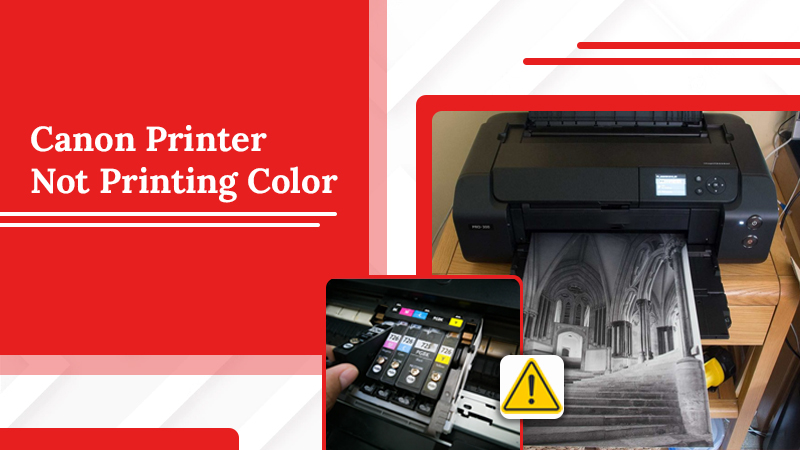
If your Canon printer is not printing color properly, missing certain colors, or producing faded pages, the problem is linked to ink flow, settings, or software. You need to fix nozzle issues, low ink, wrong print settings, driver problems, and print head faults to resolve the problem. In this post, we’ll describe in detail what to do when a Canon printer’s does not print color.
Why Is My Canon Printer Not Printing Color? Top Causes
Here are the major causes of a Canon printer not printing color.
1. Clogged Print Heads
Blocked nozzles or poor ink flow are the most common reasons a Canon printer stops printing color properly. Canon’s support guidance recommends printing a nozzle check pattern when colors are wrong or nothing prints. Print head cleaning also helps fix missing or incorrect colors.
- Turn on your printer.
- Navigate to the Setup menu, select Maintenance, and then Cleaning or Deep Cleaning.
- In your computer, open the printer properties/preferences. Tap the Maintenance tab, select Cleaning or Deep Cleaning, followed by Execute.
- After the process completed, print a Nozzle Check Pattern to verify if the lines are clear
2. Low or empty Ink Cartridges
Your printer cannot produce color if one or more color cartridges are low, empty, or not feeding ink correctly. Even if black ink is available, missing cyan, magenta, or yellow can cause faded prints, wrong shades, or no color output at all.
3. Printer Set to Grayscale or Black-only Mode
Sometimes the issue is not hardware at all. Your Canon printer may be set to grayscale, black-and-white, or draft mode in the print settings, which can stop color output even when the cartridges are fine.
To turn off grayscale and enable color printing on your Canon printer, use these steps:
- Access your computer’s printer settings.
- Go to the Control Panel and then Devices and Printers.
- Right-click your printer, select Printing Preferences, and uncheck Grayscale Printing or Black and White.
4. Outdated or Corrupted Printer Drivers
Old or damaged printer drivers can interrupt normal communication between your device and the printer. As a result, you’ll find Canon printers not printing color properly. When that happens, color print commands may not process correctly, and the printer may ignore color settings or behave unpredictably.
To download the latest version of your printer driver from the official Canon website, take these steps:
- Visit Canon.com and download the correct driver for your Canon printer model.
- Unzip the downloaded file, and open the folder where the printer driver is kept.
- Double-tap the setup file.
- Agree to the license agreement.
- Select Custom and tap Next.
- Select Update Existing Printer Drivers.
- Tap Next.
- In the Printer List for Driver Installation, check the printer information and tap Start.
- To use the printer with the updated driver, restart it.
5. Damaged Print Head
If cleaning cycles, ink replacement, and settings checks do not fix the issue, the print head itself may be damaged. This is a hardware problem, and it often needs expert diagnosis or part replacement rather than basic troubleshooting. If your Canon printer still will not print color after the standard fixes, this is the stage where it makes sense to contact a professional printer support service.
Fixes to Use When You Find Canon Printer Stopped Printing Color
Here are the expert ways to make your Canon printer print color.
- Check Ink Levels: Open the Start menu and search for Canon Utilities or Canon Printer Assistant Tool. Open it. Go to the Maintenance tab and click View Printer Status to see your levels.
- Reinstall Canon Printer Drivers: Uninstall the current driver. Download the latest version from the Canon Official Support website by using your printer model. Open the downloaded installation file and follow the on-screen wizard to connect your printer via Wi-Fi or USB.
- Align the Print Head: Turn on the printer and load paper in the printer’s Cassette. Open the Front Tray and then the printer driver setup window. Adjust the print head position and conform it. The print head alignment pattern will be printed and your Canon printer will adjust the print head position.
- Reseat and Clean the Cartridge: If Canon printer is not printing color after a new cartridge, check that you’ve removed the protective yellow tape or clear plastic film on the ink nozzle or electrical contacts. Remove the color cartridge, gently wipe the electrical contacts with a dry, lint-free cloth, and then snap it back into place until it clicks.
Canon Pixma Not Printing Color? How to Fix
Canon Pixma, the TR, MX, GX, and TS series printers fail to print color due to dry ink, wrong settings, and ink level installation. Here are the solutions you can use:
1. Deep Clean the Printer
- Open your computer’s “Control Panel” or “System Preferences.’’
- Select your Canon Pixma printer from the devices menu.
- Click on “Printer Properties” or the “Canon IJ Printer Utility.’’
- Open the “Maintenance” tab.
- Select “Deep Cleaning.”
- You will be prompted to choose which ink group you want to clean (e.g., all colors, black only, or specific colors).
- Click “Execute” or “OK” to begin.
- Wait approximately 1 to 2 minutes for the printer to finish the process.
- Do not perform any other operations while the machine is cleaning.
- Once complete, print a “Nozzle Check Pattern” to verify that the ink is flowing properly and the printhead is clear.
2. Check Print Settings
Your computer might be telling the Canon printer to only use black ink. So, check the print dialog box before hitting print. Ensure that Grayscale Printing or Black and White Only is unchecked.
3. Install the Latest Drivers
- Check the front or top of your Canon Pixma printer to locate its exact model name, like PIXMA TS3522 or PIXMA MG3620).
- Open a web browser and go to your regional Canon support website.
- Find your printer model.
- Look for the “Software and Drivers” or “Downloads” section on the product page to find the latest driver.
- Once the file is downloaded, double-click it to run the installer. Follow the on-screen instructions to complete the setup.
Frequently Asked Questions (FAQ’s)
1. How do I get my Canon printer to print in color?
Open your document and click Print. Select your Canon printer, then open “Printer Properties” or “Preferences”. Under the “Quality” tab, change the “Color Mode” from grayscale to color. Click OK to save your settings and print.
2. How to fix a printer that has new ink but prints out blank pages?
First, ensure you removed all protective tape from the new cartridges. If pages stay blank, dried ink is likely blocking the nozzles. Run a “Printhead Cleaning” cycle through your printer’s maintenance menu to clear the clogs.
Concluding Words:
You can now fix the Canon printer not printing color issue easily. Follow the fixes above and ensure that you have full ink levels. If the nozzle check shows missing colors, it’s time to seek professional Canon printer support.
